Add appendices
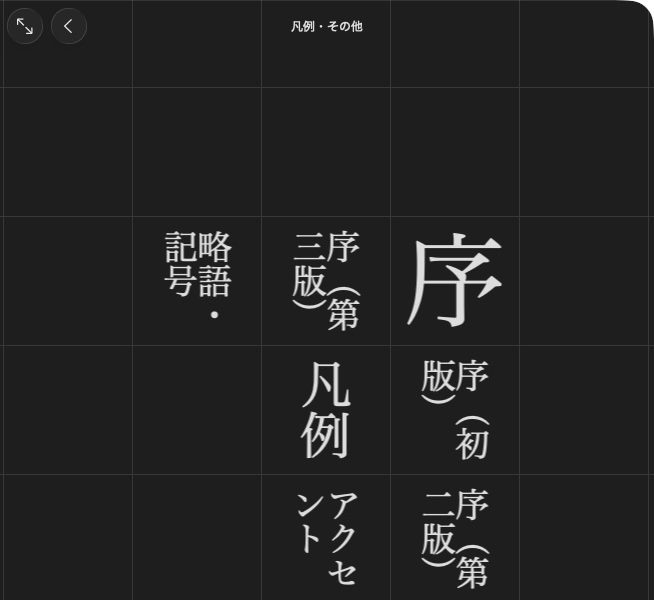
大辞林 groups reference documents under 凡例・その他.
Use the unfinished writers from the first dictionary. Add lists and documents, then arrange their menu.
Add an entry list
entries = [mkd.AppendixEntry(target, label="鶫", first_character="つ")]
birbs = dictionary.add_appendix_entries("birbs", "鳥の一覧", entries)
const std::array<MKD::AppendixEntry, 1> entries{{
    {.entryId = target, .label = "鶫", .firstCharacter = u'つ'},
}};
auto birbs = dictionary.addAppendix("birbs", "鳥の一覧", entries).value();
This writes appendix/birbs.entries and registers the list. Each item has an
entry target and optional display label and first-character grouping value.
The first character must fit in one UTF-16 code unit. Supply rows and columns
when you need a grid. The default is one column with the row count inferred.
Read the finished list through appendix menus.
Register a document appendix
dictionary.add_asset("appendix/Birds.pdf", mkd.Buffer.map("Birds.pdf"))
about = dictionary.add_appendix("appendix/Birds.pdf", "この辞典について")
auto document = MKD::RetainedSpan::map("Birds.pdf").value();
dictionary.addAsset("appendix/Birds.pdf", document.span()).value();
auto about = dictionary.addAppendix("appendix/Birds.pdf", "この辞典について").value();
Registration points to an existing or subsequently added asset. Supported document
extensions are .html and .pdf. Document appendices are registered in
the product's generated appendix listing. appendix_entry_lists exposes binary
entry lists, not document appendices.
Arrange the product menu
Without an explicit menu, registered appendices appear grouped by dictionary. Use the returned targets to choose your own sections and submenus:
product.set_appendices(mkd.AppendixMenu([
    mkd.AppendixSection("鳥を調べる", [
        mkd.AppendixItem("鳥の一覧", birbs),
        mkd.AppendixItem("もっと読む", mkd.AppendixMenu([
            mkd.AppendixSection("", [
                mkd.AppendixItem("この辞典について", about),
            ]),
        ])),
    ]),
]))
MKD::AppendixMenu more{{{"", {{"この辞典について", about}}}}};
MKD::AppendixMenu menu{{{"鳥を調べる", {
    {"鳥の一覧", birbs},
    {"もっと読む", std::move(more)},
}}}};
product.setAppendices(std::move(menu)).value();
An empty section name hides its heading. Sections and items keep their supplied
order. set_appendices replaces the automatic menu. The library writes submenu
files and validates file and article targets when the product finishes.
Other targets can be passed to AppendixItem in the same menu:
# An allocated article or subentry target, with its content dictionary's ID.
article = mkd.AppendixEntryLink(target, content.dictionary_id)
item = mkd.AppendixItem("鶫", article)

# Product-relative HTML path, with an optional element ID.
document = mkd.AppendixDocument("birbs/guide.html", fragment="reading")

# Gallery images must be loose product assets.
product.add_asset("gallery/tsugumi.png", mkd.Buffer.map("tsugumi.png"))
gallery = mkd.AppendixGallery(["gallery/tsugumi.png"])
MKD::AppendixItem item{"鶫", MKD::AppendixEntryLink{target, *content.dictionaryId}};
MKD::AppendixDocument document{"birbs/guide.html", "reading"};

auto image = MKD::RetainedSpan::map("tsugumi.png").value();
product.addAsset("gallery/tsugumi.png", image.span()).value();
MKD::AppendixGallery gallery{{"gallery/tsugumi.png"}};
Add the corresponding assets before finishing. Paths in menu targets are relative
to the product's Contents directory. Registration through the dictionary writer
returns a target with that prefix already included.
For lists of subentries, enable using_anchor_id / usingAnchorId. Otherwise the
native app opens their parent articles. single_section / singleSection shows
one list without headline grouping:
compounds = mkd.AppendixList(birbs.path, using_anchor_id=True, single_section=True)
birbs.usingAnchorId = true;
birbs.singleSection = true;
A list row normally targets its owner dictionary. Supply dictionary_id /
dictionaryId on an AppendixEntry to target another dictionary in the product.
Optional item fields provide a description, thumbnail image, or numbered title.
Custom app presenters can be inspected when reading, but cannot be authored.
Next: Choose article order.