Add images and audio
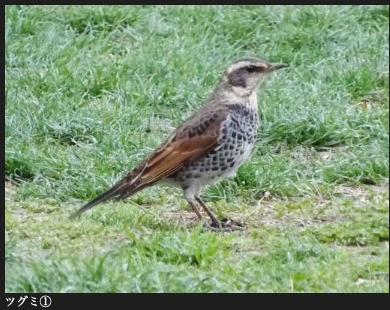
大辞泉 includes a photograph in its 鶫 article.
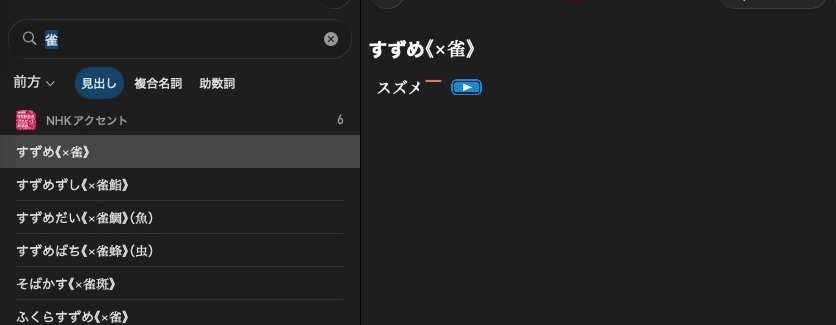
NHKアクセント provides a playback control beside the pronunciation of すずめ.
Add media before finishing the dictionary. Supply your own image and sound files. The writer preserves their bytes without transcoding.
Add packed media
dictionary.add_graphic("bird.svg", mkd.Buffer.map("bird.svg"))
dictionary.add_audio("bird.aac", mkd.Buffer.map("bird.aac"))
auto image = MKD::RetainedSpan::map("bird.svg").value();
auto sound = MKD::RetainedSpan::map("bird.aac").value();
dictionary.addGraphic("bird.svg", image.span()).value();
dictionary.addAudio("bird.aac", sound.span()).value();
Names must be single filenames. Reference these assets with the content-relative
paths graphics/bird.svg and audio/bird.aac in article XML. For example, an image
uses <img src="graphics/bird.svg" alt="鶫"/>. The writer packs graphics and audio
into named stores. add_asset cannot write into those generated directories.
Native playback still depends on a supported media format.
Place media in the article
<p><img src="graphics/bird.svg" alt="鶫"/></p>
<p><a href="audio/bird.aac">鳴き声を聞く</a></p>
An image’s src names the registered graphic. A link to an audio resource plays
it when tapped. Use media formats supported by the native app. An audio link does
not require a dedicated button API.
Use dictionary.add_asset() / addAsset() for other content-relative loose
files. Product-level assets use paths relative to product Contents/ instead.
See gaiji for character images that should align with text.
Next: Register fonts.